

What are LinePilot tools?
LinePilot tools are suite of extra tools that make it easy to build even more complex workflows using HubSpot line items.
Tools run independently of LinePilot templates via workflows, buttons in deal sidebars and even through Breeze AI Agents.
Tools are included on all pricing plans - each time a tool is run, it counts towards the "Total runs" used each month.
Introduction to editing line items
The edit line items action is ideal for making changes to existing line items, for example, those that your team have already entered. If you're looking to add new line items - you should check out LinePilot templates instead. If you're looking to add a percentage increase or decrease to your line item pricing - take a look at change line item pricing.
Each "Edit line items" workflow action allows you to input:
- Which property on the line item to edit
- The new value you'd like to use
There is also a filter option, so that instead of updating all line items on a deal, you can target specific line items based on the existing values of the line item. e.g. Update all line items of a particular to "Annual Billing"
You can also chose to update the deal total, this is especially helpful if you're updating pricing on the line items.
Setting up your workflow action
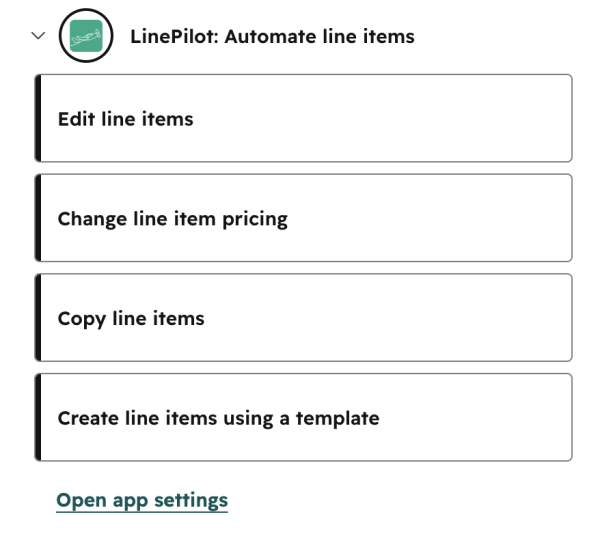
Once LinePilot is installed in your HubSpot account - open up a deal-based workflow and you will see the LinePilot workflow actions listed. Currently, LinePilot only supports deal-based workflows - but we hope to expand support to other objects in the future.
On your workflow actions you'll see the following inputs - see below for more information on each one:
| Input | Notes |
|---|---|
| Target record (HubSpot native) | This allows the HubSpot workflow to target either the deal that's currently running, or another related deal. Enrolled deal is the default. |
| Property to edit | Just choose a property to edit - this will include any custom properties you've set up on your line items. If you'd like to update multiple line item properties (e.g. Term and Billing Frequency together) - you'll need to use multiple workflow actions, just run one after another. |
| Edit mode | This will populate once you've selected the deal property. You'll see multiple options here if your property is a drop-down select in HubSpot. If so, you can either choose from the select options for that property, or use text or a data token. The latter is helpful if you're pulling the data from elsewhere e.g. from a deal property or a calculated property. |
| New Value | This will adapt based on the type of property you've chosen. You can also fill out from a data token - this will allow you to set a dynamic value from elsewhere, either from the workflow, associated records or the deal. For example, for complex use-cases - you could use calculated properties to calculate a value or the "Format data" or "Custom coded actions" options inside HubSpot workflows. Note, if you're using dynamic values for a drop-down select property, you can use either the internal name or the label of the option. |
| Select line items | You can choose to update all line items on the deal, or only some of them using filter options (see below) |
| Deal Total Calculation | This is helpful if you're updating pricing, LinePilot can update the deal amount using one of the calculation methods supported by HubSpot e.g. MRR/ARR |
| Risks checkbox | You must check the box before the workflow action will run. Line items in HubSpot cannot be restored once edited - so make sure everything is fully tested before running on live data. |
Filter options
| Input | Notes |
|---|---|
| Filter property | Use the line item property that you'd like to filter by |
| Match type | This is dynamic based on the type of the line item property - but includes common options like "contains" "equals" "before" |
| Filter mode | This will populate once you've selected the deal property - usually you'll just have one option. This helps us give you easy options to choose from when populating the value. |
| Filter value | Choose the value you'd like to use as the filter option. You can use data tokens here too, but use care to ensure that this is set correctly otherwise you may end up updating line items you do not expect. |
Troubleshooting
If there's an error updating your line items you'll get an update inside the HubSpot workflow action logs - but you can also get easy visibility of the runs and history from the logs section of the LinePilot dashboard.
If it's not clear what the error is and you need help troubleshooting - just get in touch with our support team - it's helpful to include the deal ID or link with your request.